> ## Documentation Index
> Fetch the complete documentation index at: https://help.heymumble.com/llms.txt
> Use this file to discover all available pages before exploring further.
# Your first dictation
> Hold Fn to dictate, release to insert. Double-tap Fn for Hands-free mode when you want to talk longer.
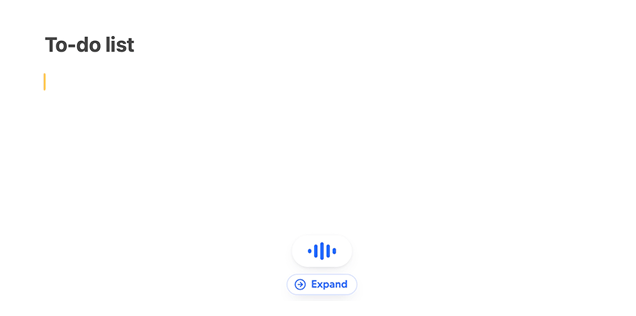
To dictate, click into any text field, hold **Fn** (or the key you chose), and speak. A small pill appears near the bottom of your screen while Mumble listens. Release the key and your words land at the cursor as clean text.
 A few things that help on day one:
* **Talk naturally.** Mumble, ramble, correct yourself mid-sentence. The cleanup step removes fillers and false starts, so you do not need to speak like a newsreader.
* **Press Esc to cancel.** If you change your mind while recording, Esc throws the take away and nothing is inserted.
* **No text field focused?** If Mumble cannot find a place to type, your text is copied to the clipboard and a small panel shows it, so you can insert or paste it wherever you like.
## Hands-free mode
For longer thoughts, double-tap **Fn** instead of holding it. Mumble keeps recording with no key held down, and shows a timer on the pill. You can pause and resume from the pill while you think.
When you are done, press **Enter** or click **End & review**. Your text appears in a review panel where you can read it, edit it, or copy it. Press **Enter** again to insert it, or **Esc** to dismiss it without inserting.
Hands-free mode has its own shortcut setting, so you can give it a different
key than regular dictation. Find both under **Settings**. [See Settings and
shortcuts](/dictation/settings)
## Where it works
Anywhere you can type: Mail, Slack, Notion, Google Docs, browsers, and code editors like Cursor or VS Code. There is no per-app setup. If a specific app does not receive the text, see [Troubleshooting](/dictation/troubleshooting).
## Related
* [AI Actions overview](/dictation/ai-actions)
* [Settings and shortcuts](/dictation/settings)
* [Troubleshooting](/dictation/troubleshooting)
A few things that help on day one:
* **Talk naturally.** Mumble, ramble, correct yourself mid-sentence. The cleanup step removes fillers and false starts, so you do not need to speak like a newsreader.
* **Press Esc to cancel.** If you change your mind while recording, Esc throws the take away and nothing is inserted.
* **No text field focused?** If Mumble cannot find a place to type, your text is copied to the clipboard and a small panel shows it, so you can insert or paste it wherever you like.
## Hands-free mode
For longer thoughts, double-tap **Fn** instead of holding it. Mumble keeps recording with no key held down, and shows a timer on the pill. You can pause and resume from the pill while you think.
When you are done, press **Enter** or click **End & review**. Your text appears in a review panel where you can read it, edit it, or copy it. Press **Enter** again to insert it, or **Esc** to dismiss it without inserting.
Hands-free mode has its own shortcut setting, so you can give it a different
key than regular dictation. Find both under **Settings**. [See Settings and
shortcuts](/dictation/settings)
## Where it works
Anywhere you can type: Mail, Slack, Notion, Google Docs, browsers, and code editors like Cursor or VS Code. There is no per-app setup. If a specific app does not receive the text, see [Troubleshooting](/dictation/troubleshooting).
## Related
* [AI Actions overview](/dictation/ai-actions)
* [Settings and shortcuts](/dictation/settings)
* [Troubleshooting](/dictation/troubleshooting)