The Mumble AI Mac app is being redesigned. These guides describe the previous
version and will be updated when the new app ships.
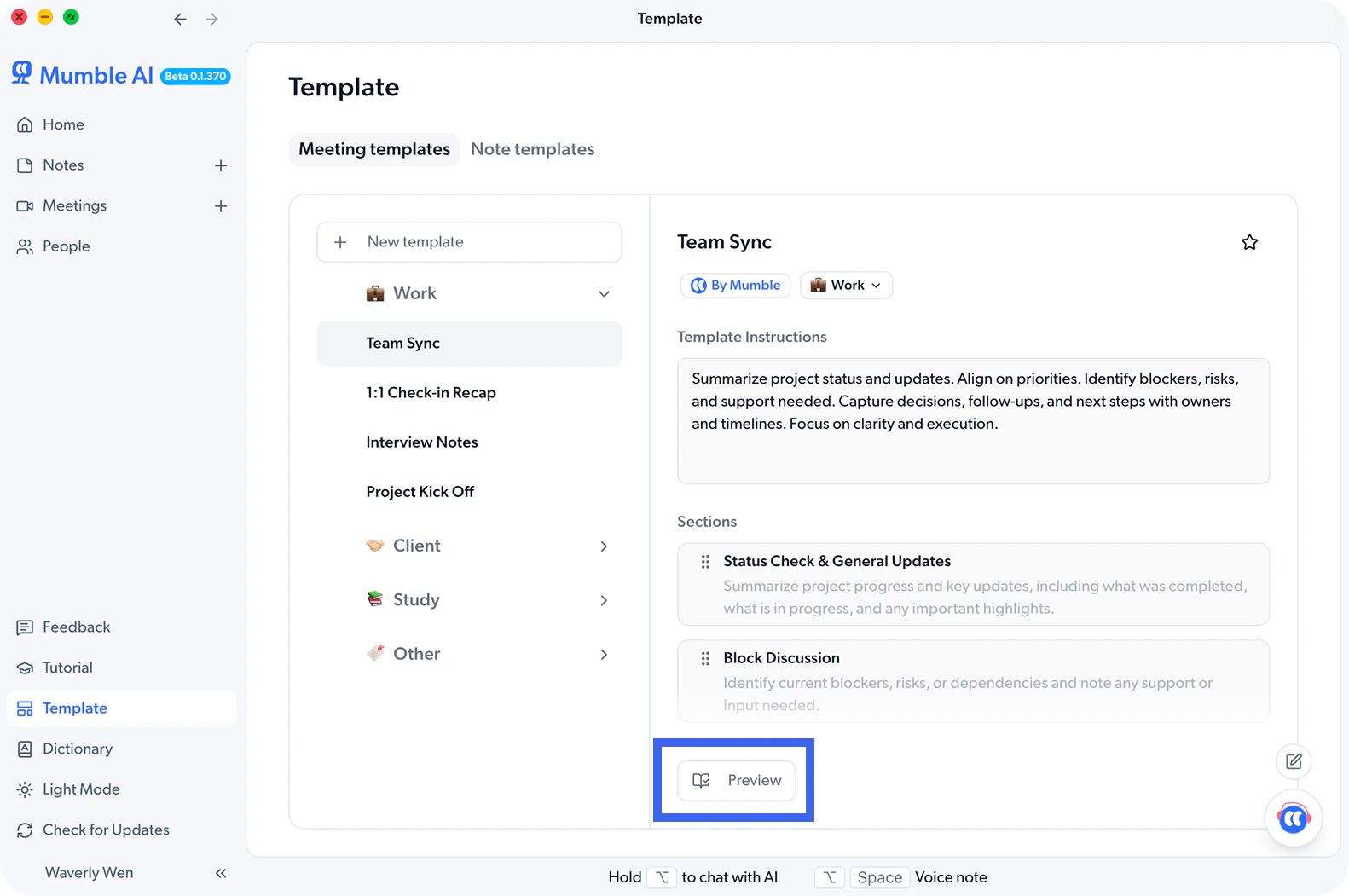
- Category can be changed or added using the dropdown under the template title.
- The order of templates and categories can be adjusted in the left template list. You can drag and drop templates to reorder them or move them into a different category.
- Each section and the template instruction can be edited directly in the input fields on the right. You can also select specific text and use your shortcut for voice edit to quickly update the content.
Preview
If you want to see how a template works before using it, click Preview in the bottom right corner.
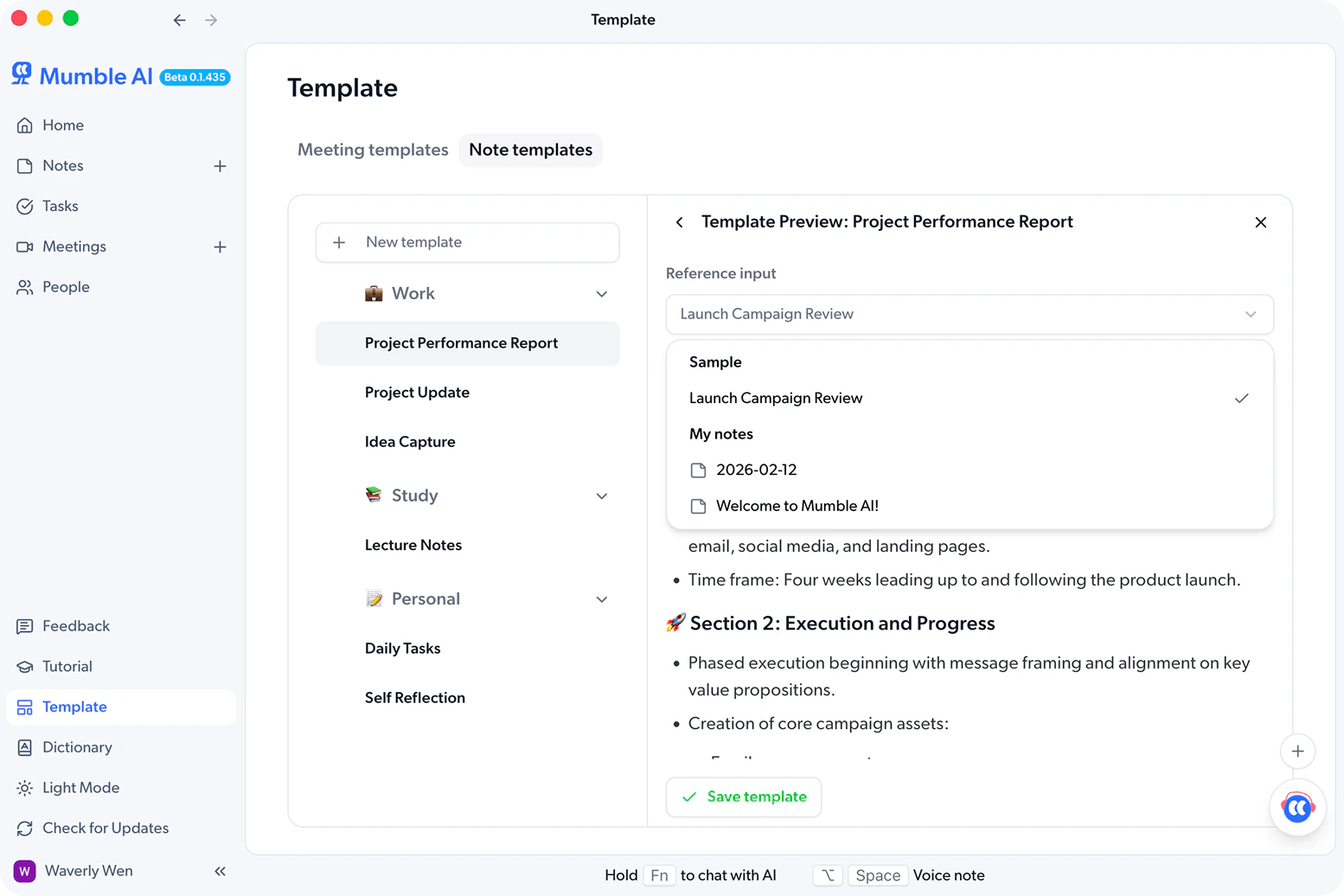
In the preview page, you can generate output using either a built in sample from Mumble AI or your own notes. This helps you understand how the final result will look in real scenarios.
Favorite templates
You can click Favorite in the top right corner of a template to save it. Favorited templates will appear at the top of the template selection dropdown in meeting summary or notes.