
Before you start
Check your microphone in Settings > General. For an online call, also allow System Audio in Settings > Data and privacy so Mumble can capture the other participants. Fix recording permissionsRecord
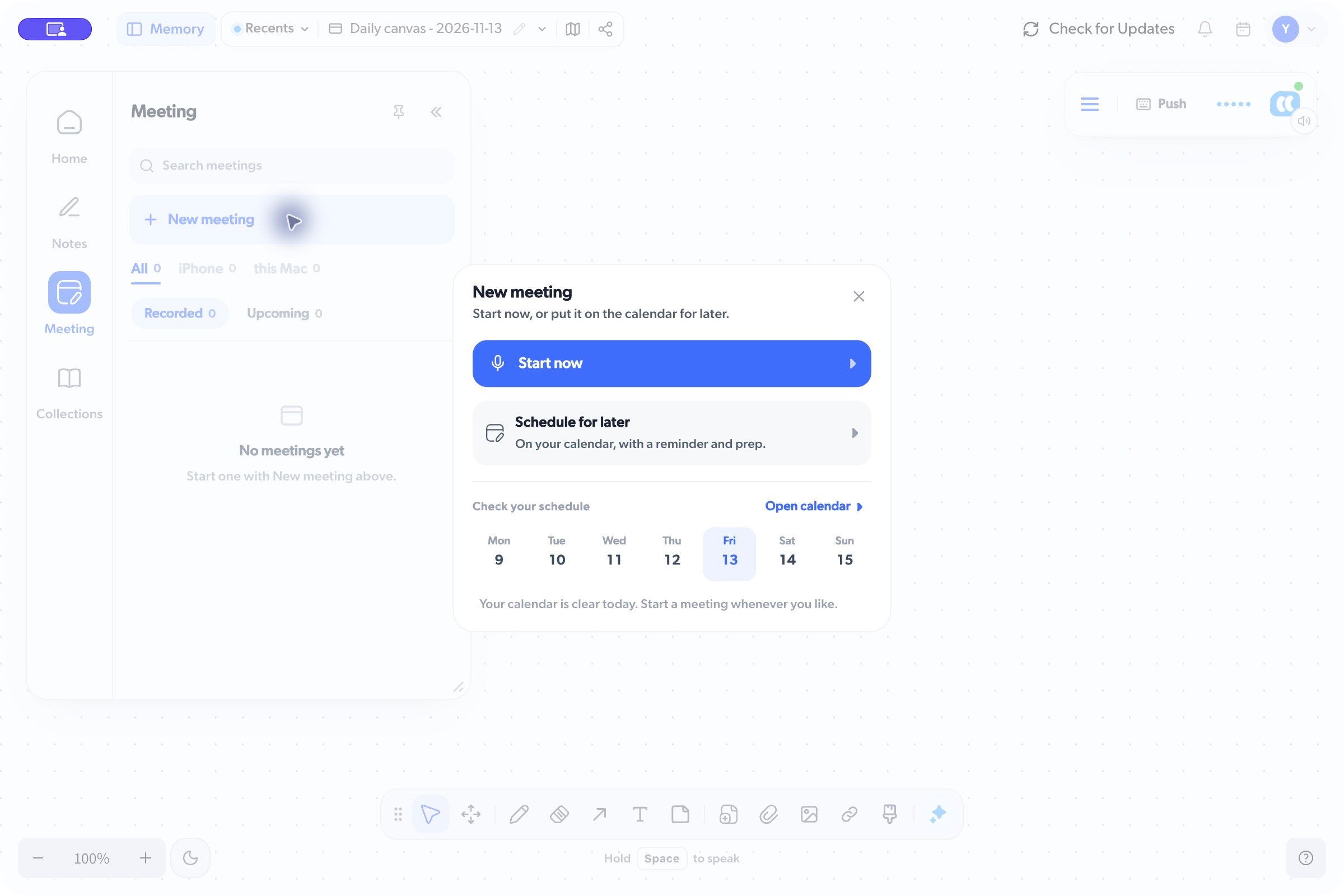
- Open Memory, then choose Meeting.
- Click New meeting.
- Choose Start now.
- Check that the recording indicator appears. Speak normally or join your call.
Finish
Open the recording chip’s controls and choose Stop recording. For a single meeting, hover over the chip to reveal the controls. Stopping the recording lets Mumble finish processing the meeting. Return to Memory > Meeting > Recorded, open the meeting, and review:- Transcript for what was captured.
- Summary and other outputs for a structured write-up.