
Create a note

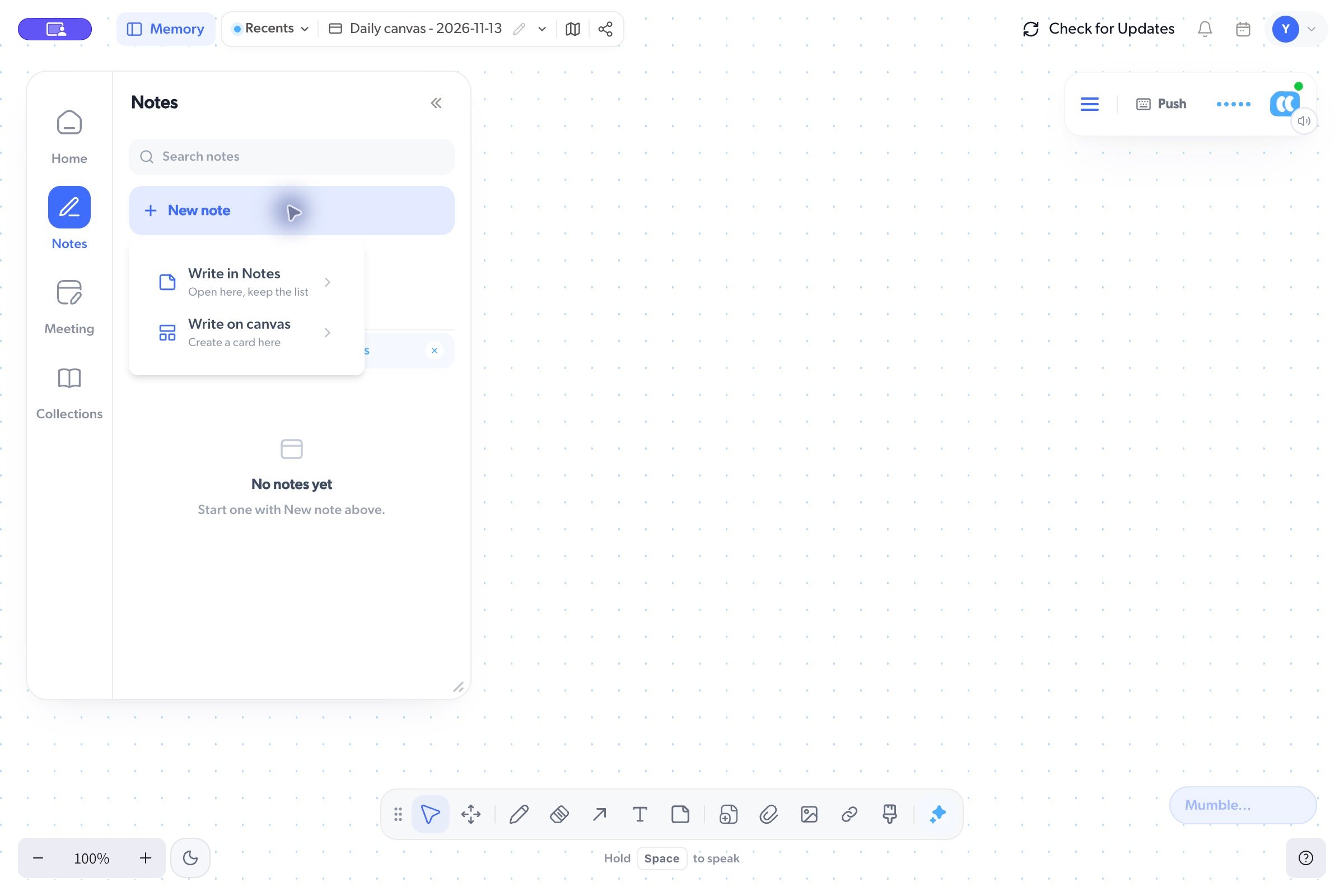
  1. Open Memory > Notes.
  2. Click New note.
  3. Choose Write in Notes to keep the list beside the editor, or Write on canvas to create a card in your workspace.
  4. Enter your note and give it a useful title.
You can also open Shortcuts from the floating dock and choose Note > Quick note.
New note menu with Write in Notes and Write on
canvas

Find a note again

Use Search notes in Memory. Check the source and author filters if the list does not show what you expect. By you and By Mumble distinguish notes you created from AI-created notes. An empty filtered list does not mean your notes have been deleted. Clear the search and filters, then check that you are signed into the expected account. Use Add to collection from a note’s menu to group it with related notes or meetings. Open Collections in Memory to find the group later. Work with collections

Get help with the content

Select content on the canvas to see the AI actions available for that selection, or open the Mumble input and describe what you want to change. Be specific about the source and result: “Turn this note into a short checklist” is more useful than “Improve it.” Review the result before using it. AI-generated notes can omit details or introduce mistakes.