
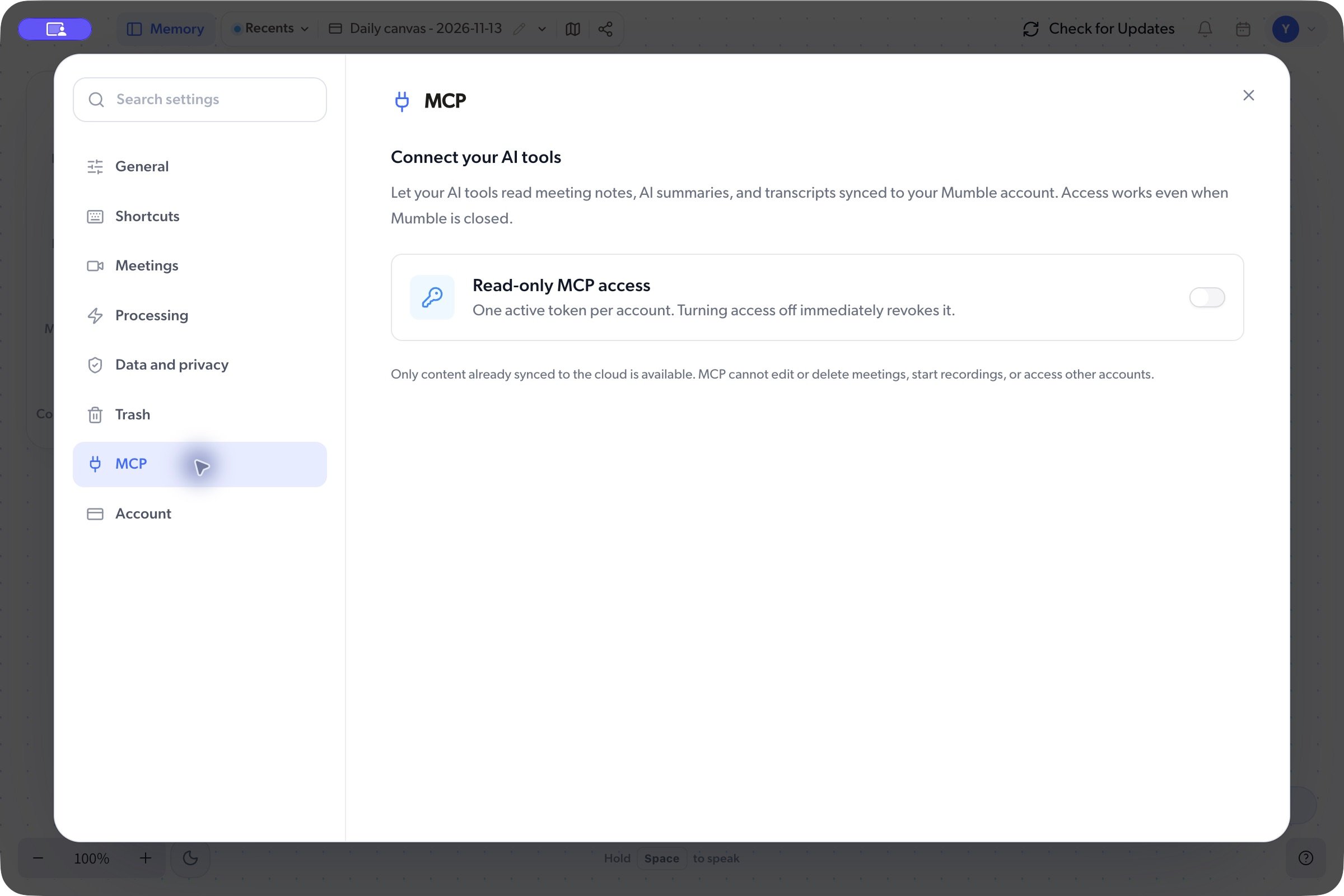
Connect a tool
- Sign in to Mumble and open Settings > MCP.
- Turn on Read-only MCP access.
- Click Copy MCP JSON before leaving the pane. The token is shown only once.
- Add the configuration to an AI tool that supports remote HTTP MCP servers, following that tool’s setup instructions.
- Ask the tool to find a meeting you know has synced, then check the result against Mumble.
What the connection can access
Only eligible content already synced to the cloud is available. MCP cannot start recordings, edit or delete meetings, or access another account. It does not upload local-only content for you.Replace or revoke access
- Regenerate token immediately replaces the previous token. Update the configuration in every connected tool.
- Turning Read-only MCP access off immediately revokes the token.
Troubleshooting
- Could not load MCP access: check your connection and select Retry.
- The client cannot authenticate: check whether the token was revoked or regenerated, and replace the client’s old configuration.
- A meeting is missing: verify the account and that its content has synced. Unsynced local content will not appear.
- The client rejects the configuration: check that it supports remote HTTP MCP and that you used its expected configuration format.