
What makes it different
- Private and offline. A voice model and a language model both run on your Mac. Your audio and transcripts stay on the device, and dictation keeps working with no internet connection. How Mumble handles your data
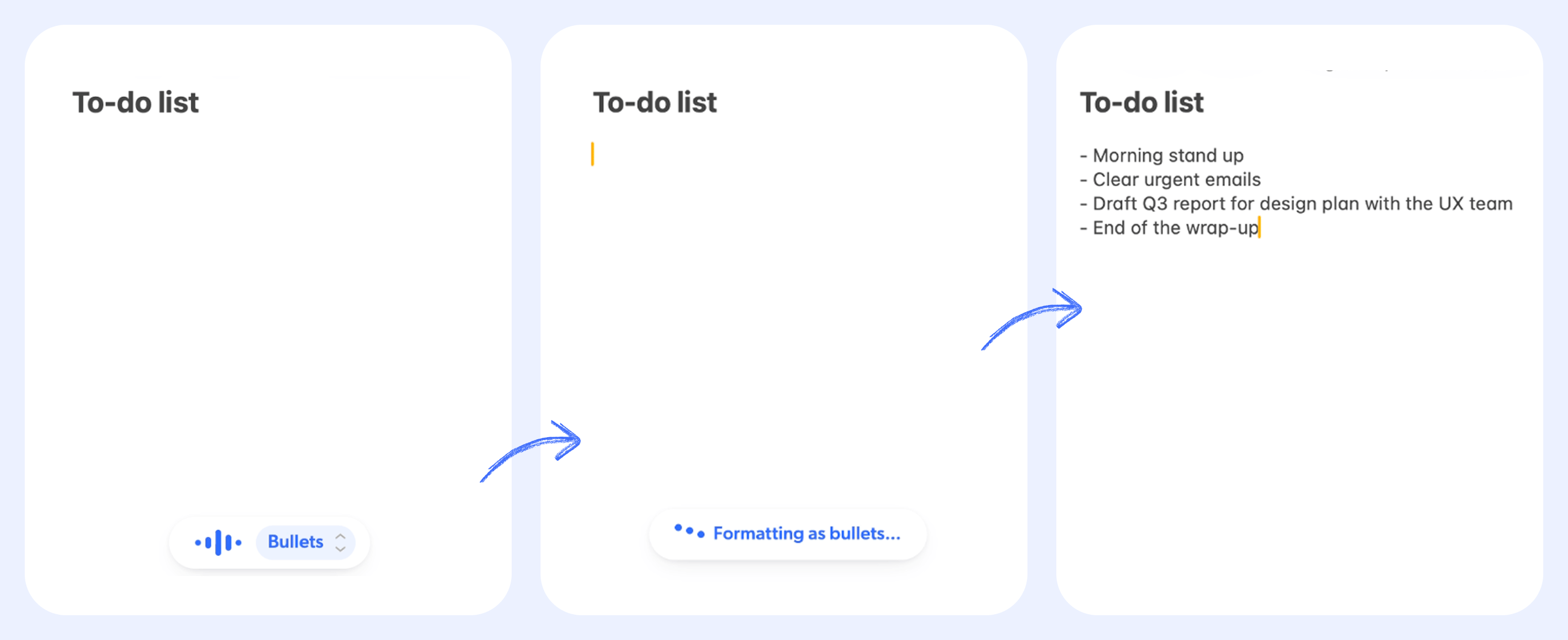
- AI Actions. Your speech does not have to land word for word. AI Actions can clean it up, shorten it, turn it into bullet points, translate it, or run your own instruction. Voice actions go further: open a site, search the web, or send a question to an AI assistant. Learn about AI Actions
- 40+ languages, mixed freely. Speak English, Chinese, Spanish, Japanese, French, German, Hindi, or Arabic, and switch languages mid-sentence. Mumble detects each phrase automatically. See all languages
- Works everywhere you type. Mail, Slack, Notion, Google Docs, browsers, code editors. If it has a text field, you can dictate into it. There is nothing to set up per app.
Free and Pro
Dictation itself is free with no word caps and no account. Pro is a one-time purchase that adds the AI layer: cleanup, all AI Actions, custom prompts, and a dictionary that learns your words. Every download starts with 60 minutes of Pro to try. Compare Free and ProMumble Dictation and Mumble AI
Mumble Dictation is a standalone app from the team behind Mumble AI, the meeting notes and voice notes app. You can use either one on its own.Try it
Download Mumble Dictation
Free to download, with unlimited dictation and 60 minutes of Pro included to
try.