The Mumble AI Mac app is being redesigned. These guides describe the previous
version and will be updated when the new app ships.
Ways to start recording
There are several ways to start a meeting recording in Mumble.From a calendar reminder
When you connect Google Calendar, Mumble sends you a system notification one minute before each meeting. The notification shows the meeting title, time, and participants. Click “Join meeting” to open the call and start recording.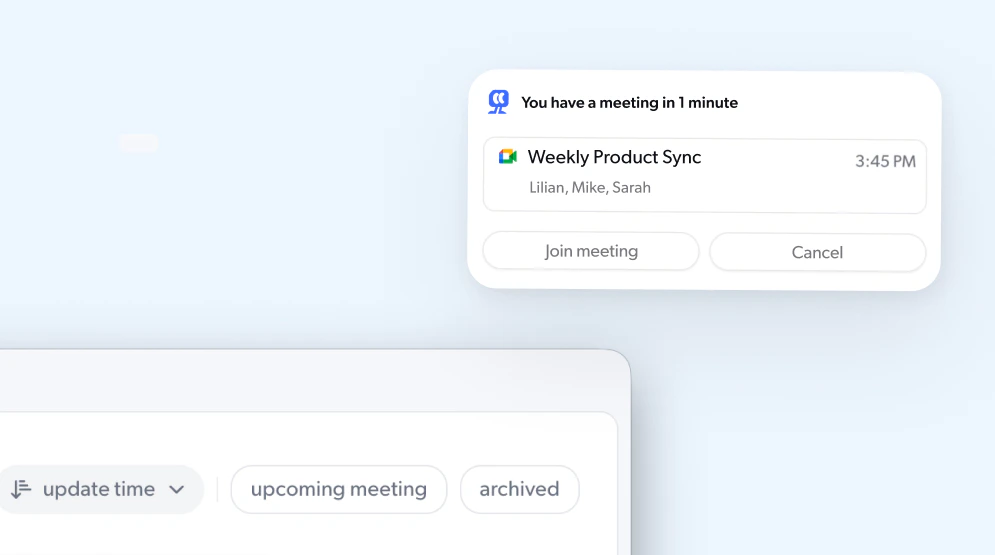
From automatic detection
When Mumble detects a meeting app like Zoom, Google Meet, or Teams is active, a notification appears saying “Meeting Detected” with a countdown. Click “Record” to start, or “Cancel” to skip. If Auto Recording is enabled, Mumble starts recording automatically without waiting for you to click.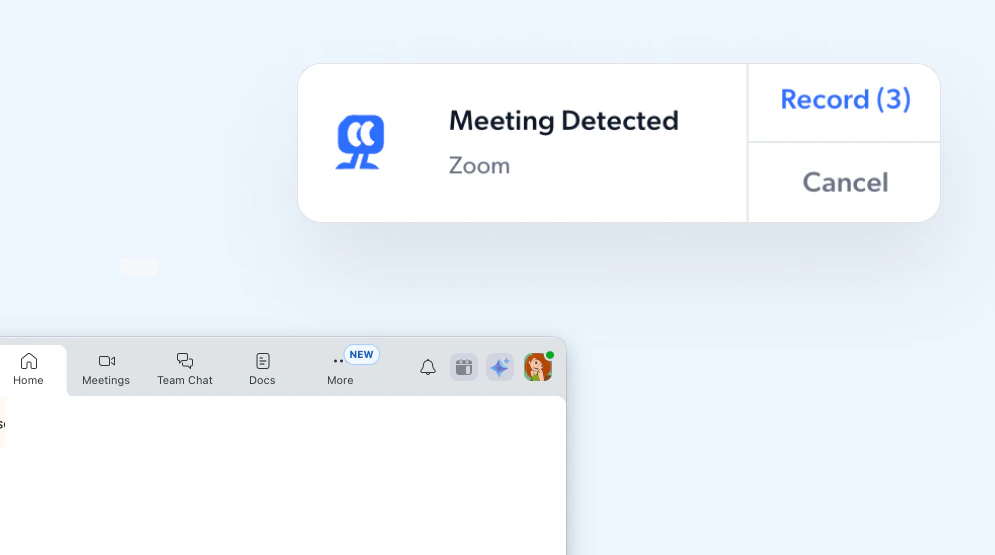
Record a new meeting
Click “New meeting” from the Home screen, the sidebar, or the top of the Meetings page to start a recording manually. This is useful for ad-hoc calls or in-person conversations that aren’t on your calendar.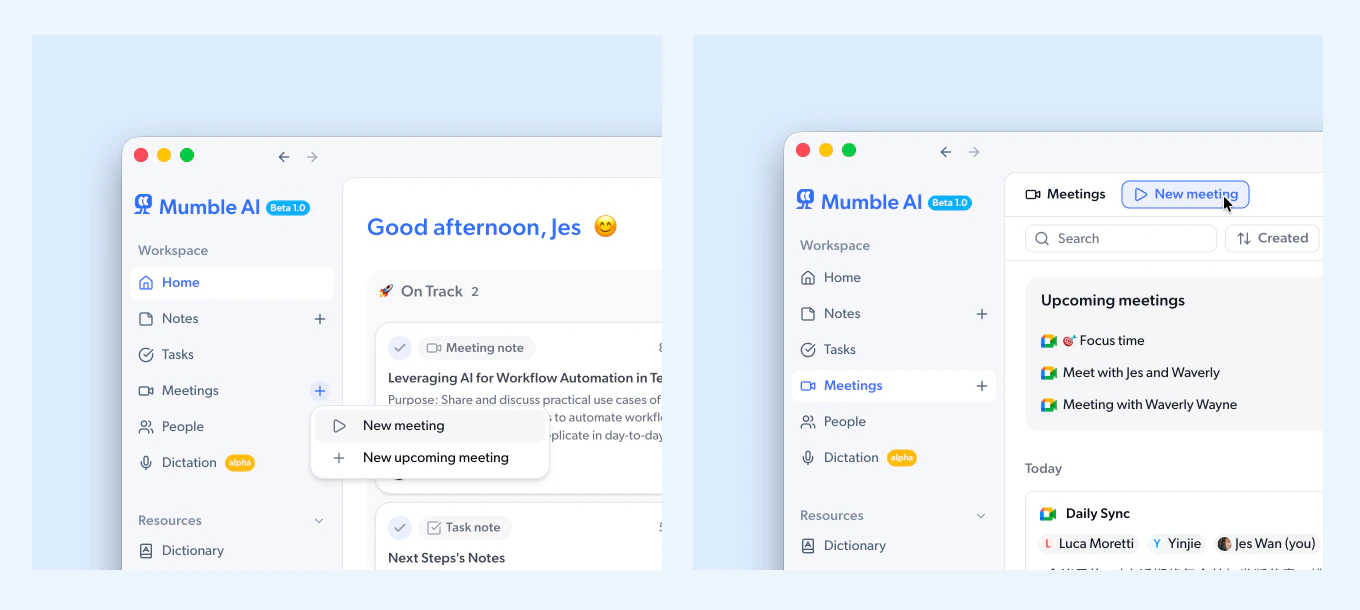
From a calendar event
Click any upcoming meeting synced from Google Calendar to open its detail page, then click “Start recording.” This links the recording to that calendar event so the meeting title and participants carry over automatically.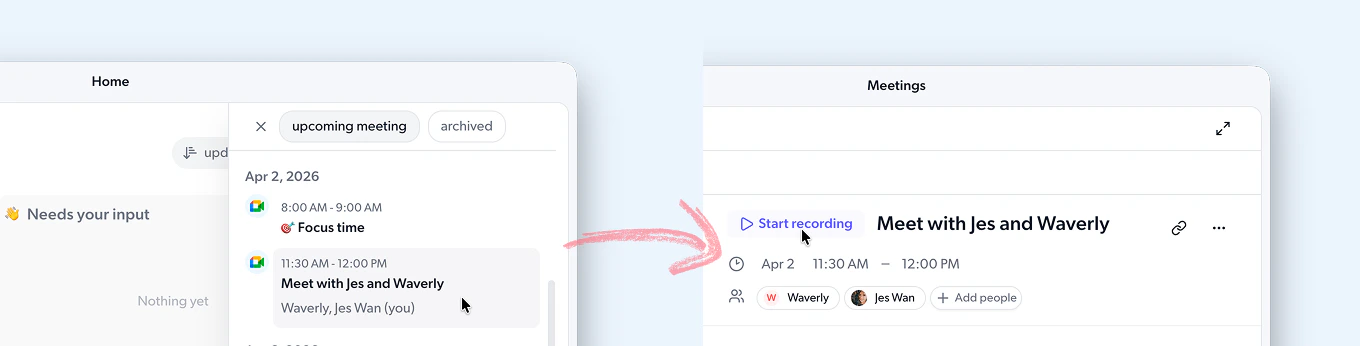
Auto Recording
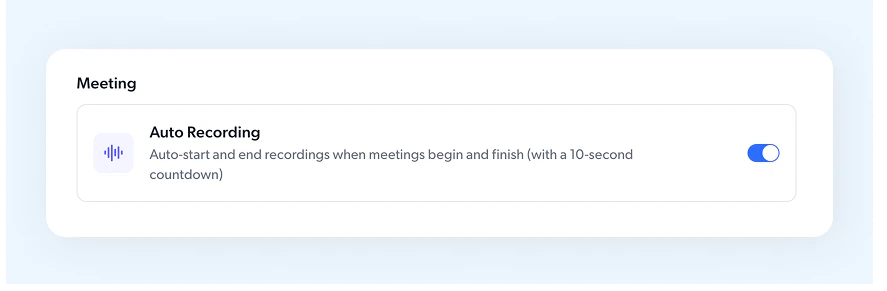
Auto Recording is on by default. When enabled, Mumble automatically starts and stops recording when meetings begin and finish, with a 10-second countdown before it begins. Turn it on in Settings > Meeting > Auto Recording.