The Mumble AI Mac app is being redesigned. These guides describe the previous
version and will be updated when the new app ships.
The meeting panel
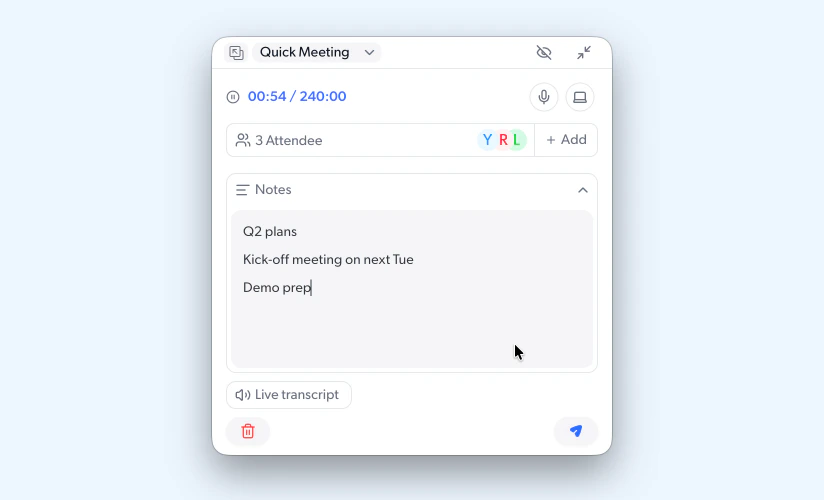
Once recording starts, Mumble opens a floating panel that keeps two things in view while you talk: a space for your own notes, and a live transcript of the conversation. From the panel you can also check the meeting duration, pause the recording, manage attendees, or finish and delete the meeting.
Live transcript
Click “Live transcript” at the bottom of the panel to see the conversation transcribed in real time. Each line is marked as either Microphone (your voice) or System Audio (other participants). Mumble then works in the background to identify who is speaking. Initially, speakers may appear as Speaker 1, Speaker 2, and so on. As the meeting progresses, Mumble reads participant names from the meeting window and assigns them to the correct speakers. This requires Screen Recording permission.
If a speaker isn’t identified automatically, you can click ”+” on the attendee row to add the person manually.
Take your own notes
The Notes section in the panel lets you type your own thoughts while the meeting is happening. Use it to flag key moments, capture decisions, or write follow-ups as you need. Anything you write here will be included in the meeting summary after the recording ends.
Stay focused
If the panel gets in the way, click the shrink button (top right) to minimize it into a small floating widget. Or click the hide button (the eye icon next to it) to tuck Mumble into the menu bar, where it keeps recording silently. Click the Mumble icon in the menu bar to bring it back.
When the meeting is over, click the send button to end the recording and generate your summary. If Auto Recording is on, Mumble detects that the meeting has ended, shows a 10-second countdown, and automatically saves the recording and starts generating your summary. Learn more about meeting summaries →