
The Mumble AI Mac app is being redesigned. These guides describe the previous
version and will be updated when the new app ships.
Getting started checklist
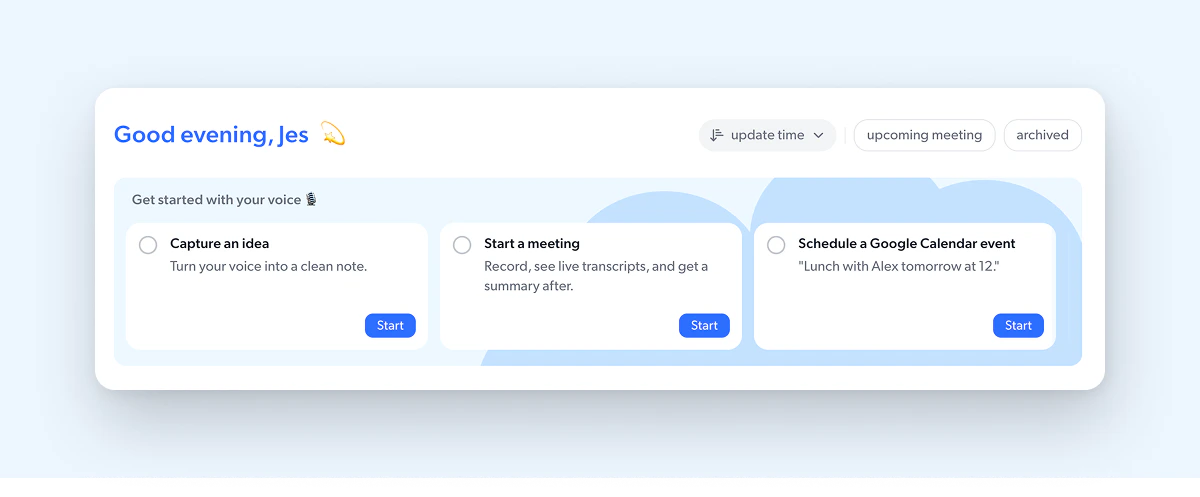
When you first open Mumble, a checklist appears at the top of Home to help you try each core feature. Each card walks you through one action.- Capture an idea. Create your first voice note and see how Mumble turns it into a clean, structured note.
- Start a meeting. Record a meeting and see live transcripts and a summary generated afterward.
- Schedule a Google Calendar event. Try creating a calendar event by voice, like “Lunch with Alex tomorrow at 12.”
Dashboard
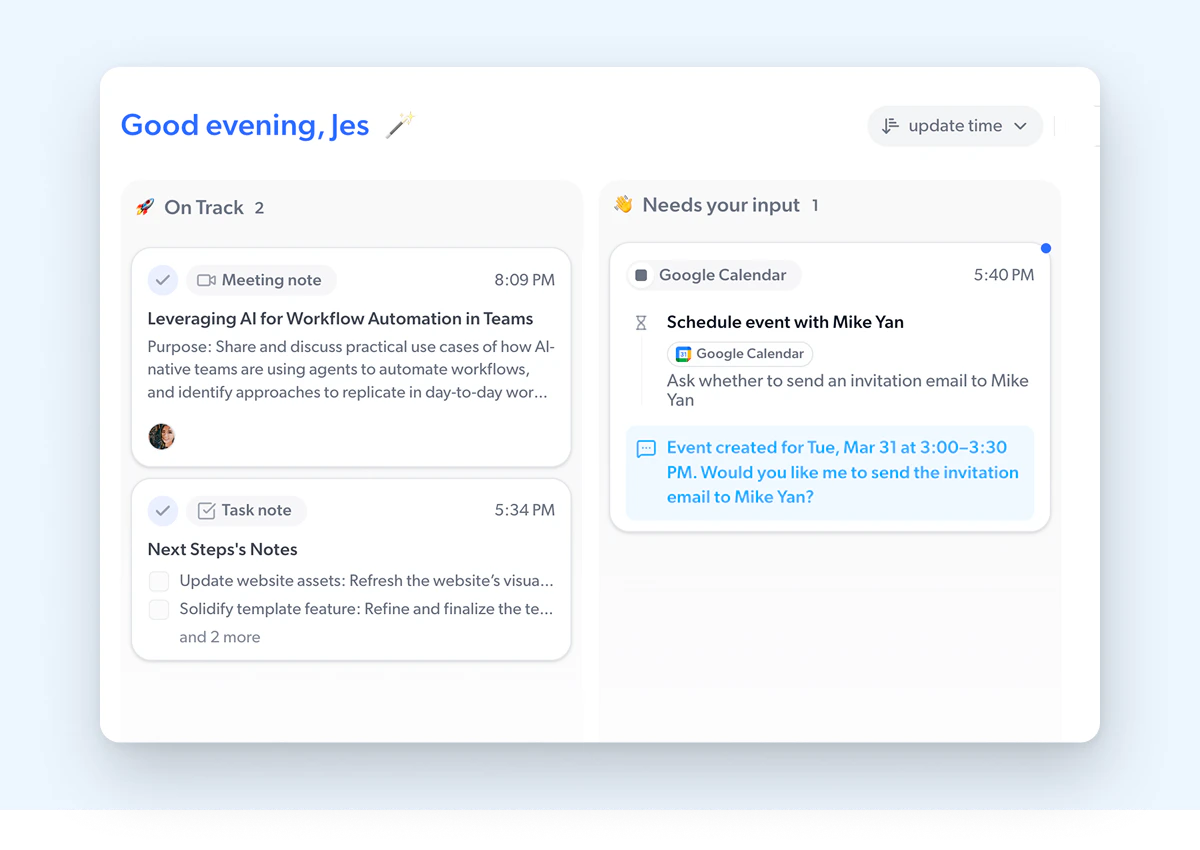
Below the checklist (or at the top of Home once it’s gone), you’ll see two columns that act as your dashboard.- On Track shows items that are fully processed and complete. This includes meeting notes with finished transcripts and summaries, voice notes that have been structured, and completed skill actions. The number next to the heading is your total count. A blue dot on a card means it’s new since you last checked.
- Needs your input shows items that still need something from you. This could be a skill action that requires confirmation. When nothing is pending, this column shows “Nothing yet.”
Filters
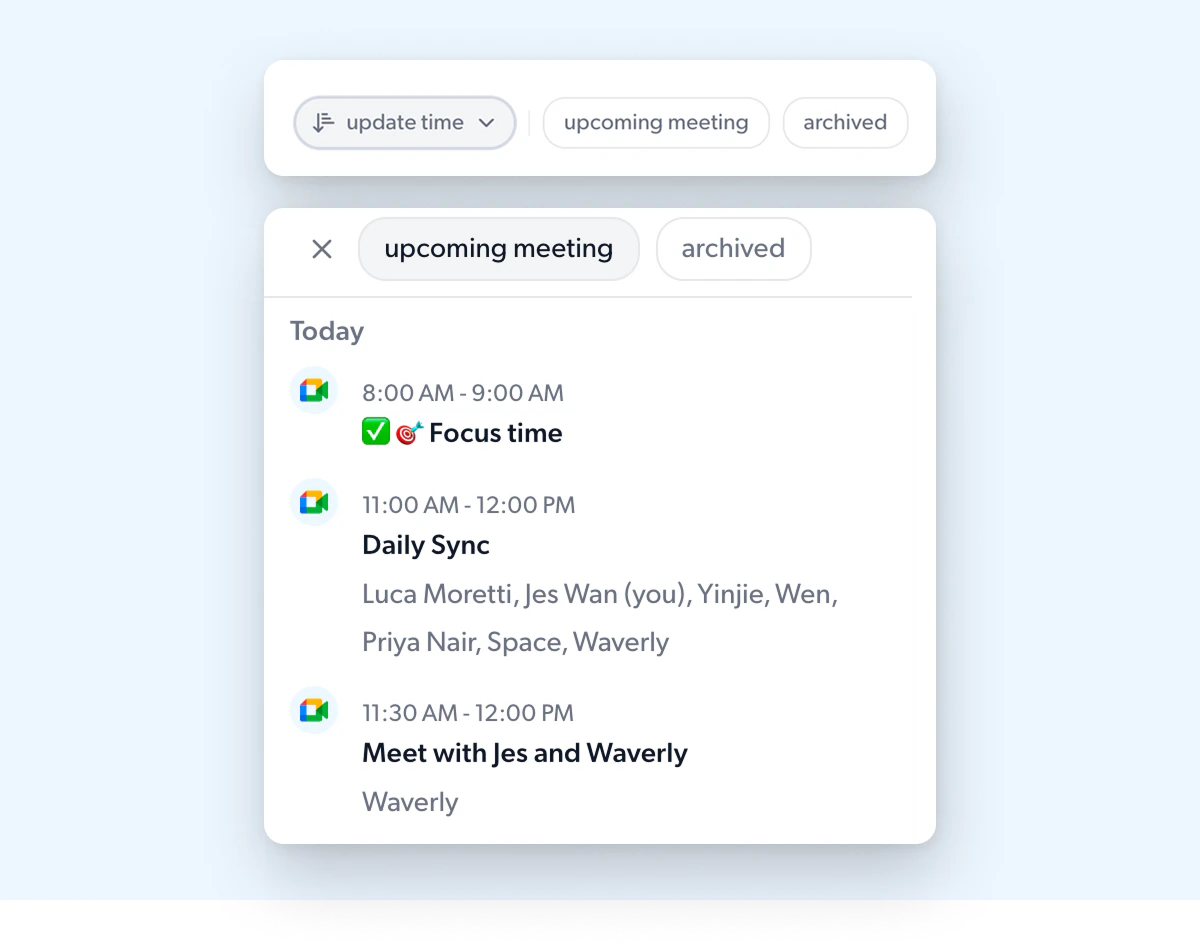
The controls at the top right let you switch between different views of your Home content.- Update time sorts items by when they were last modified. You can change it to Create time.
- Upcoming meeting opens a panel showing your schedule synced from Google Calendar, organized by day with meeting times, titles, and participants.
- Archived shows items you’ve previously archived.
App sidebar
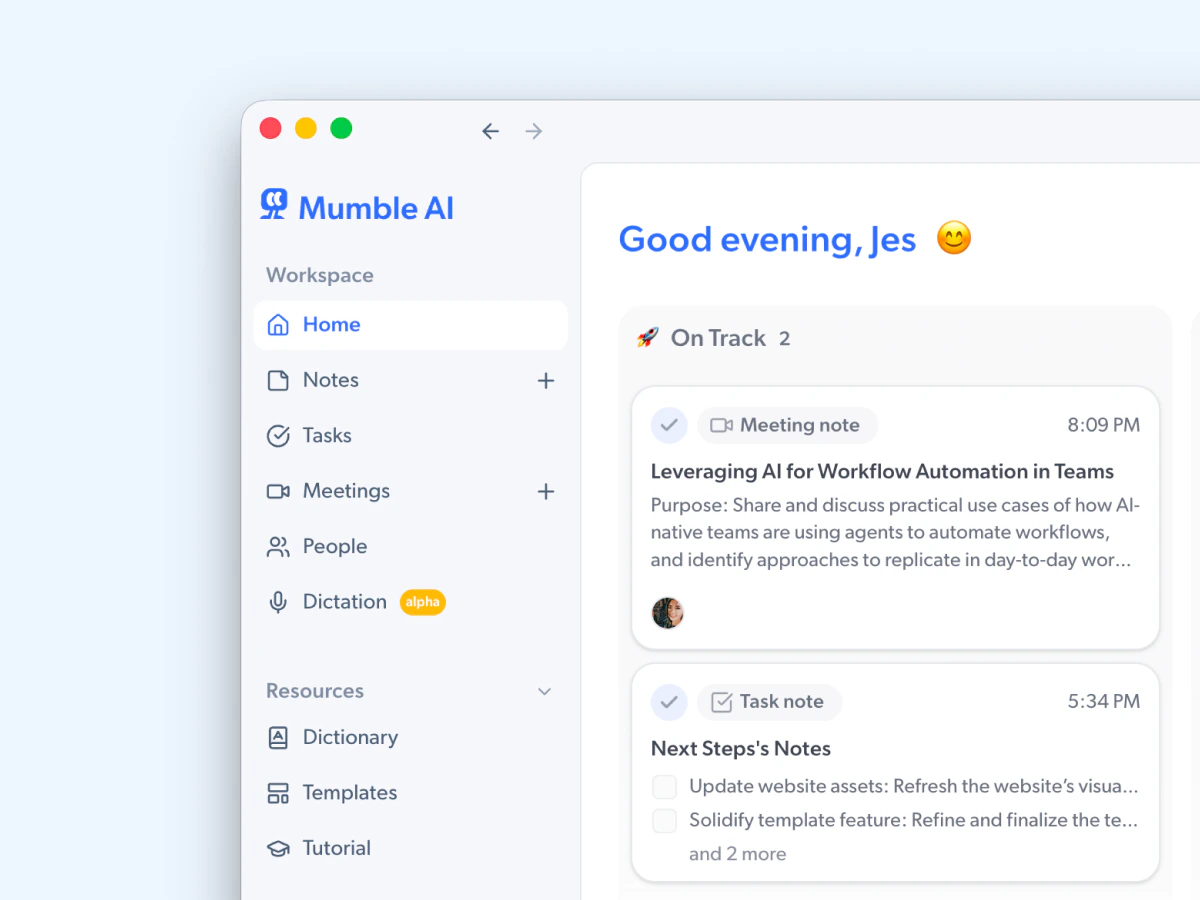
The left sidebar is how you navigate each core function of Mumble.- Home. Returns you to this screen.
- Notes. All your text notes and voice notes. Create, edit, search, and organize them here. Learn more →
- Tasks. A space for your to-dos. When you create a voice note and choose “task note” as the type, the content goes here automatically. You can also type tasks directly or record them by voice.
- Meetings. Every meeting Mumble has recorded, with audio, transcripts and summaries. You can also create upcoming meetings manually or see ones synced from Google Calendar. Learn more →
- People. Your contact list, built automatically from meeting participants or people mentioned in your chats with Mumble AI. View all meetings and notes associated with a specific person.
- Dictation. Dictation settings and history. This feature is currently in alpha, so it may not be visible in your app yet.
Resources
Under a collapsible section in the sidebar.- Dictionary. Add custom vocabulary so Mumble recognizes names, acronyms, or technical terms that standard transcription might miss.
- Templates. Browse and manage templates that control how Mumble formats meeting summaries and voice notes. Learn more →
- Tutorial. A series of video demos for a refresher on each feature.
Inbox and other controls
At the bottom of the sidebar.- Inbox. Notifications and updates from the Mumble team.
- Feedback. Send feedback directly to the Mumble team.
- Check for Updates. Make sure you’re running the latest version.