
Add words yourself
Click Add a word, type it, and press Enter. That is the whole flow. Words you add live on the Added by you tab, where you can edit or delete them any time, and they work on the Free plan.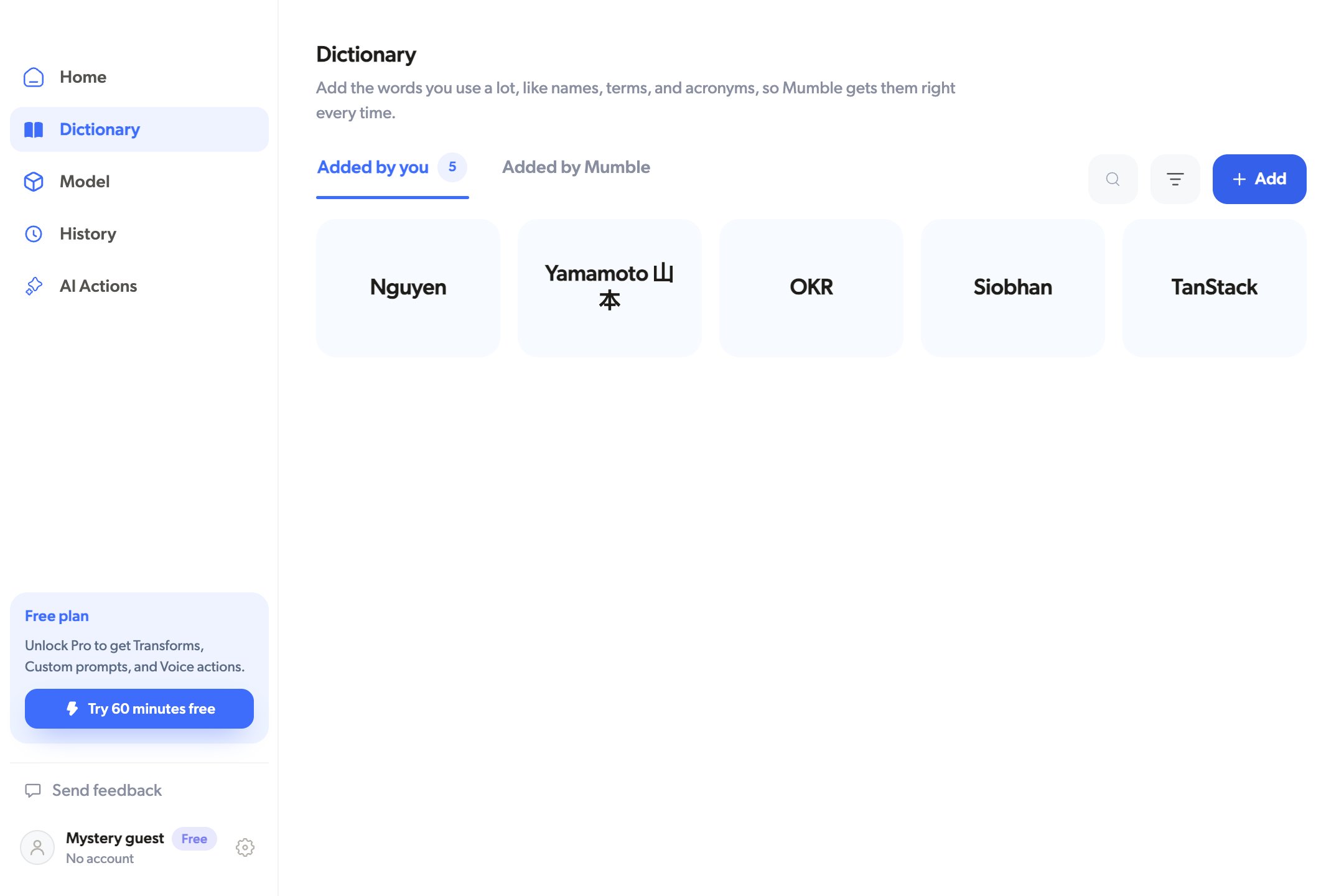
Let Mumble learn words on its own
On Pro, Mumble can also pick up words by itself. While you dictate, it watches the words on your screen and adds unfamiliar ones, so the vocabulary of your project follows you without any typing. These land on the Added by Mumble tab, where you can delete any you do not want. Everything stays on your Mac. To turn this on, enable Auto-collect words from your screen at the top of the Dictionary. It is off until you switch it on, and it needs the Accessibility permission you granted during setup.Dictionary words are hints for recognition, not find-and-replace rules. They
tell Mumble how to spell a word when you say it; they do not rewrite text that
is already typed.