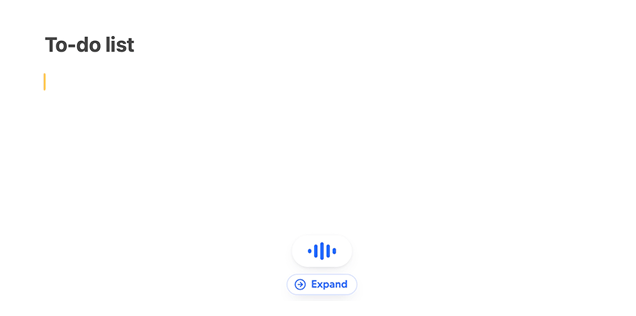
To dictate, click into any text field, hold Fn (or the key you chose), and speak. A small pill appears near the bottom of your screen while Mumble listens. Release the key and your words land at the cursor as clean text.
The pill near the bottom of the screen while Mumble
listens
A few things that help on day one:
  • Talk naturally. Mumble, ramble, correct yourself mid-sentence. The cleanup step removes fillers and false starts, so you do not need to speak like a newsreader.
  • Press Esc to cancel. If you change your mind while recording, Esc throws the take away and nothing is inserted.
  • No text field focused? If Mumble cannot find a place to type, your text is copied to the clipboard and a small panel shows it, so you can insert or paste it wherever you like.

Hands-free mode

For longer thoughts, double-tap Fn instead of holding it. Mumble keeps recording with no key held down, and shows a timer on the pill. You can pause and resume from the pill while you think. When you are done, press Enter or click End & review. Your text appears in a review panel where you can read it, edit it, or copy it. Press Enter again to insert it, or Esc to dismiss it without inserting.
Hands-free mode has its own shortcut setting, so you can give it a different key than regular dictation. Find both under Settings. See Settings and shortcuts

Where it works

Anywhere you can type: Mail, Slack, Notion, Google Docs, browsers, and code editors like Cursor or VS Code. There is no per-app setup. If a specific app does not receive the text, see Troubleshooting.