Voice actions need an internet connection. Everything else in Mumble Dictation
keeps working offline, and turning GIF on shows a one-time confirmation
because it is the only Transform-panel action that reaches the internet by
design.
Open
Say where you are headed and Mumble picks the right site and opens your browser there. “Search the weather in Tokyo this weekend” opens a Google search; ask for YouTube, Google Maps, Amazon, Google Meet, X, or most sites you can name, and it lands you on the right one. When it cannot tell where you meant, it falls back to a Google search. Useful when your hands are busy and the address bar is far away.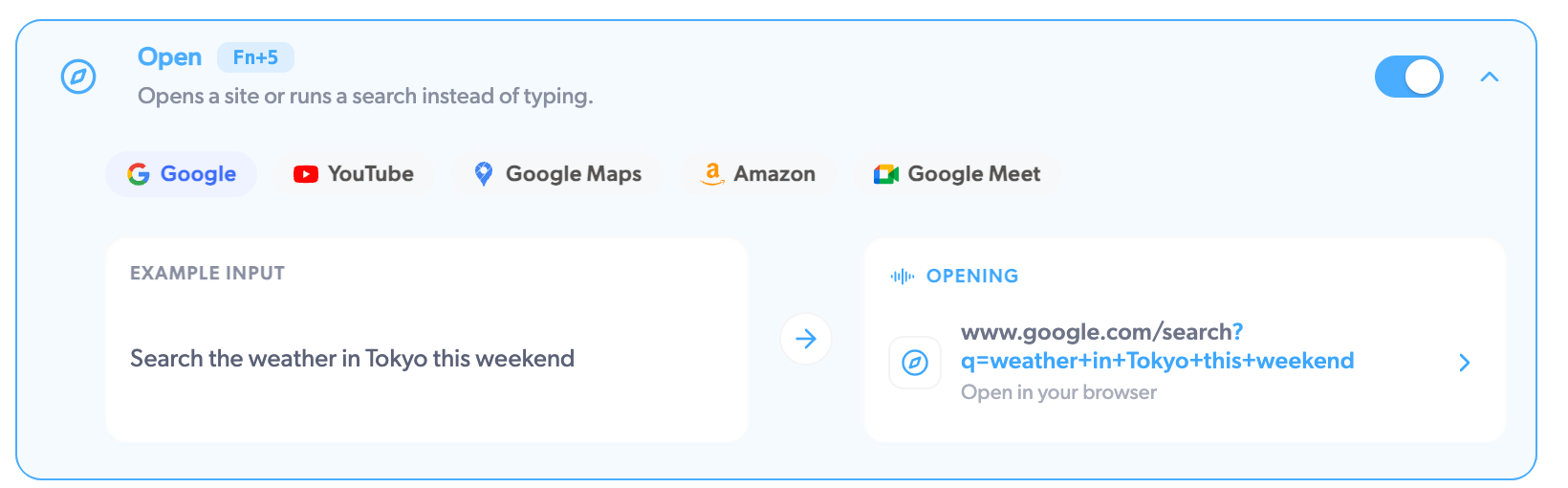
Ask
Sends your question to ChatGPT, Claude, or Grok. Say “Ask ChatGPT to plan a 3-day Tokyo trip” and the ChatGPT app opens with your question already sent. Name the assistant you want mid-sentence, or Mumble uses the first one you have enabled. ChatGPT and Claude open through their Mac apps, so those need to be installed; if one is missing, Mumble shows a message asking you to install it. Grok opens in your browser.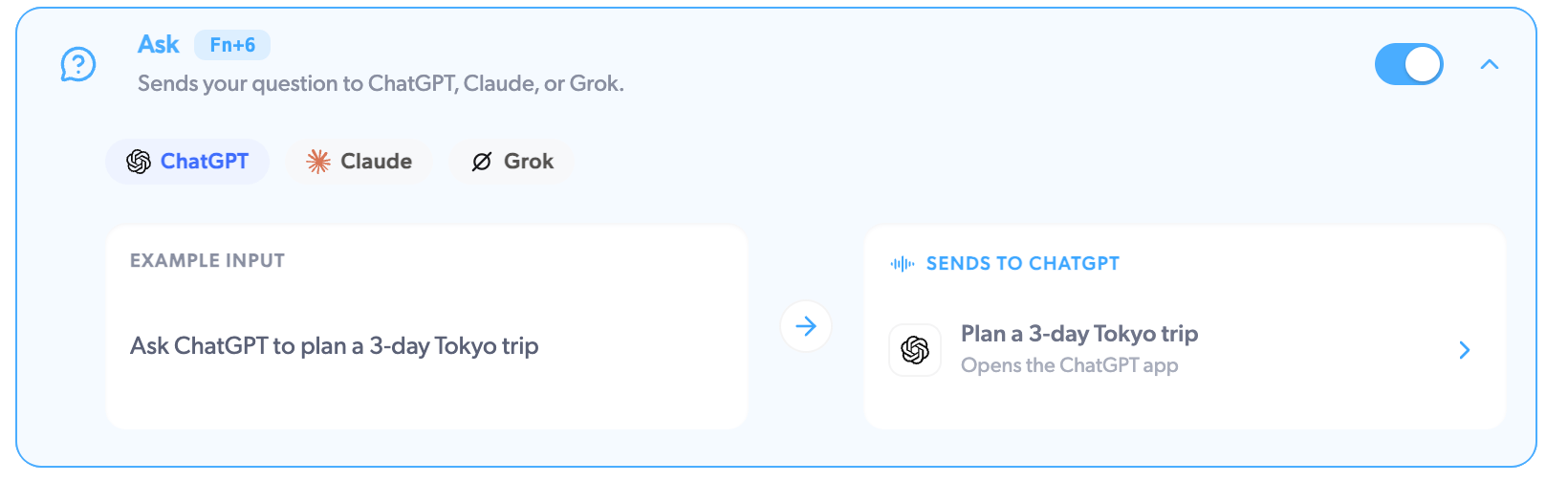
GIF
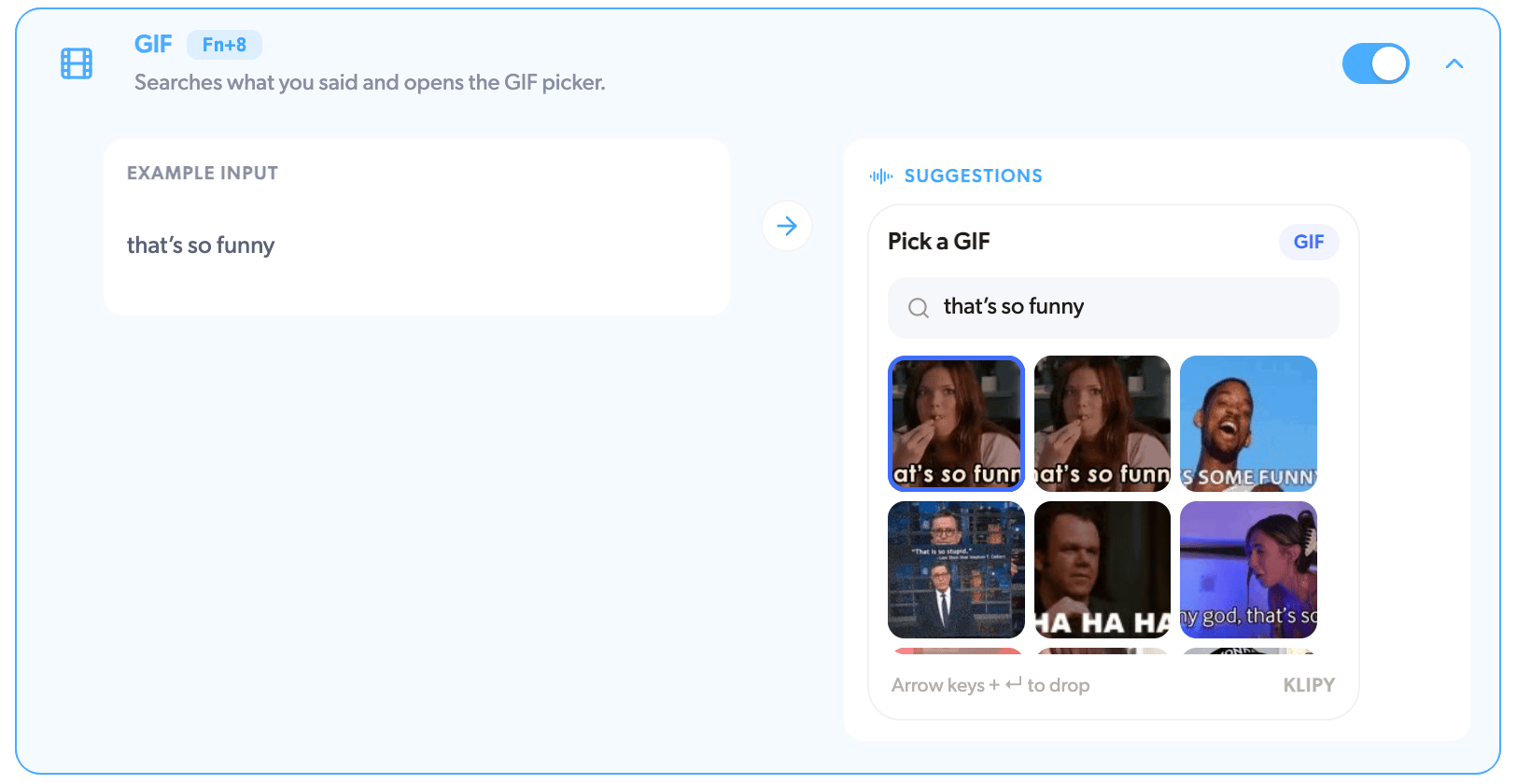
Searches what you said and opens a GIF picker with the results. Use the arrow keys and Enter to drop one at your cursor. Say “that’s so funny” in a Slack thread and pick your reaction without touching the trackpad.